> For the complete documentation index, see [llms.txt](https://flowmate.gitbook.io/flowmate-documentation/llms.txt). Markdown versions of documentation pages are available by appending `.md` to page URLs; this page is available as [Markdown](https://flowmate.gitbook.io/flowmate-documentation/getting-started/connect-mcp/connect-flowmate-to-claude-desktop.md).
# Connect FlowMate to Claude Desktop
This guide walks through connecting FlowMate to Claude Desktop using the built-in Connectors UI.
{% hint style="info" %}
**Prerequisites**
* [Claude Desktop](https://claude.ai/download) installed and up to date
* A FlowMate account — [sign up at flowmate.io](https://flowmate.io/) if you don't have one
{% endhint %}
{% stepper %}
{% step %}
### Open the Customize menu and select Connectors
Open Claude Desktop. In the sidebar, click **Customize** and click on the **Connectors** Tab.
{% endstep %}
{% step %}
### Add a new Connector
Click **Add more** and select **Web** to add a URL-based MCP connector.
{% endstep %}
{% step %}
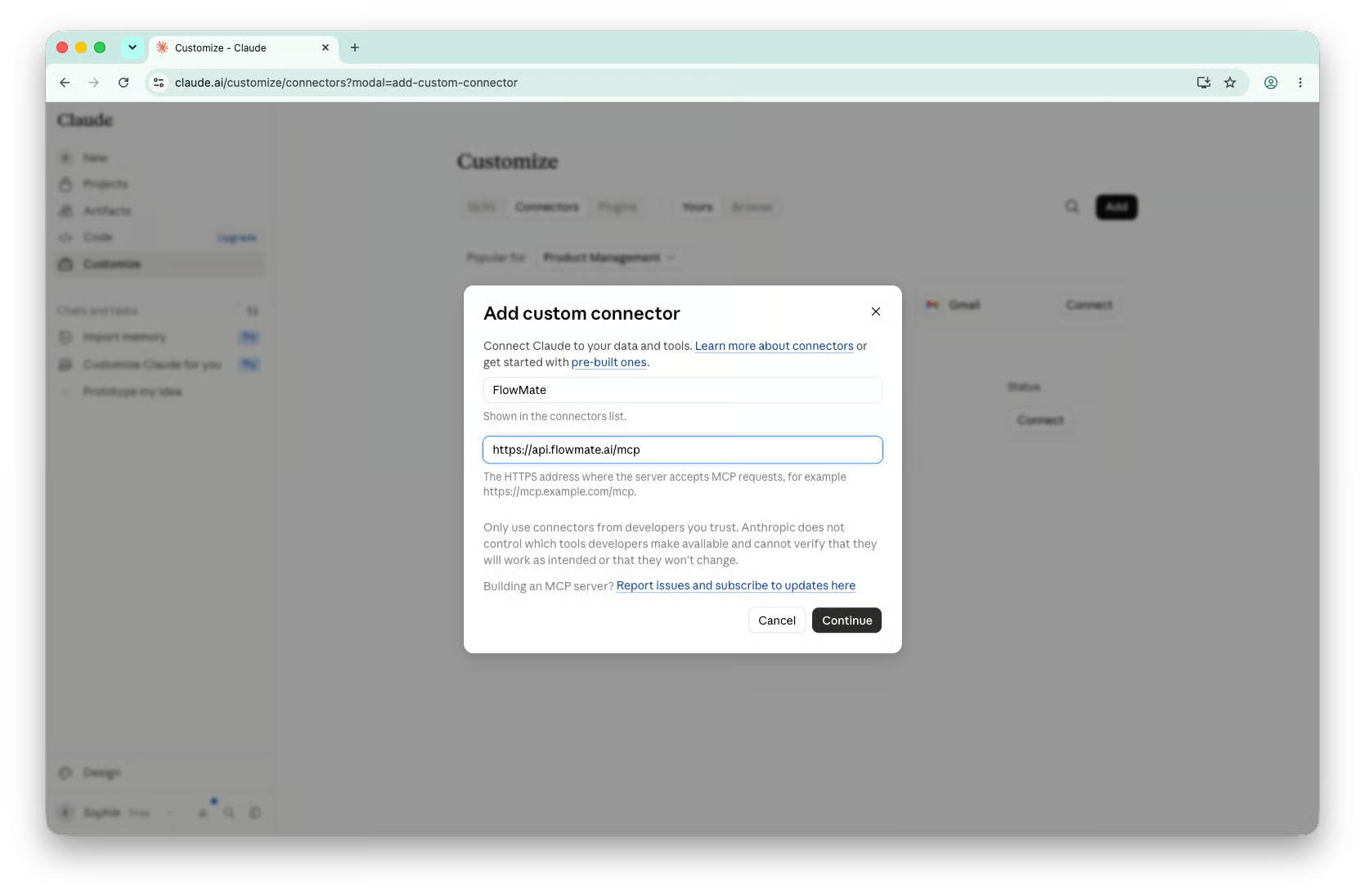
### Enter the FlowMate MCP URL
Enter FlowMate as Name and paste the FlowMate MCP server URL into the field:
```
https://api.flowmate.ai/mcp
```
Click **continue.**
Claude will detect the server configuration automatically — leave the **Authentication** and **OAuth client** settings as detected.
{% endstep %}
{% step %}
### Sign in to FlowMate
Claude will open a sign-in prompt for FlowMate. Enter your FlowMate credentials and confirm access.
{% endstep %}
{% step %}
### Verify the connection
FlowMate will appear in your Connectors list with a green status indicator.Verify the connection
Start a new conversation and start creating your first flow. Here's an example:
> "Every Monday at 9am, fetch open issues from Linear that are overdue and send a summary to my email."
Claude will call FlowMate and build your first flow.
{% endstep %}
{% endstepper %}